> ## Documentation Index
> Fetch the complete documentation index at: https://nango-wari-integration-config-credentials-api.mintlify.site/llms.txt
> Use this file to discover all available pages before exploring further.
# UKG Pro - How do I link my account?
## Overview
To authenticate with UKG Pro, you need:
1. **Service Account Username** - The username for your UKG Pro service account
2. **Service Account Password** - The password generated for your UKG Pro service account
3. **Customer API Key** - Your UKG Pro Customer API Key found in Service Account Administration
4. **Hostname** - The tenant URL of your UKG Pro instance (e.g. servicet.ultipro.com)
This guide will walk you through finding your Customer API Key, setting up a service account, and locating your hostname.
### Prerequisites:
* You must have UKG Pro system administrator rights to create service accounts
### Instructions:
#### Step 1: Finding Your Customer API Key
To find your Customer API Key in UKG Pro:
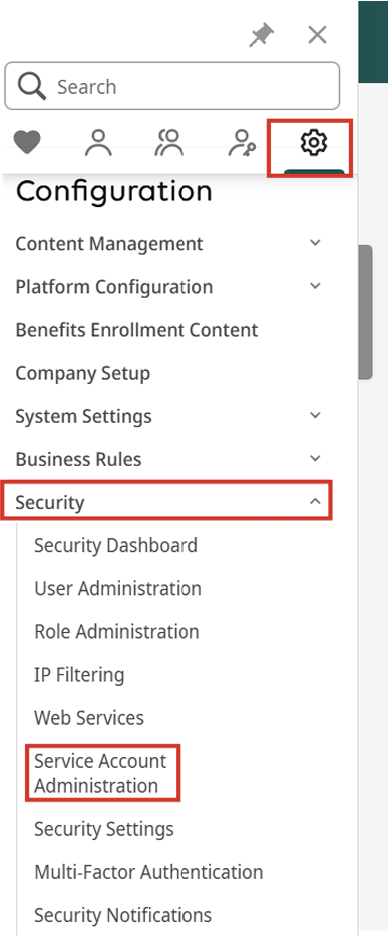
1. Open the Service Account Administration page
* Click "Settings" from the side menu
* Go to the "Security" tab
* Select "Service Account Administration"
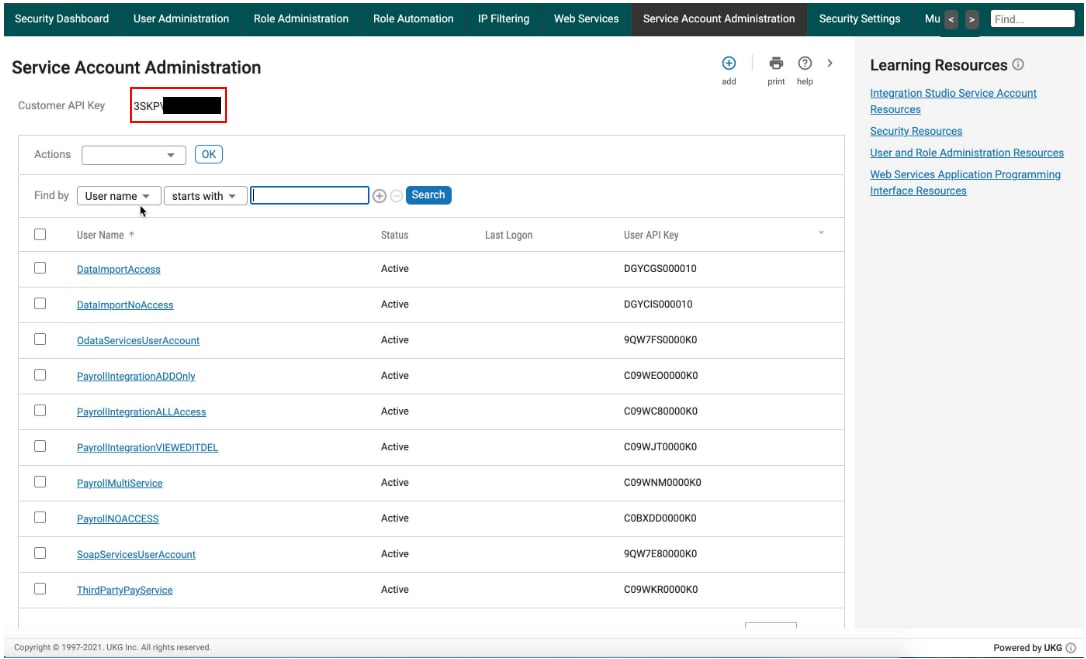
 2. Locate your Customer API Key
* The Customer API Key will be displayed at the top of the page
2. Locate your Customer API Key
* The Customer API Key will be displayed at the top of the page
 #### Step 2: Creating a Web Service Account
To create a service account:
1. On the Service Account Administration page, click the Add (+) button located at the top right of the page
#### Step 2: Creating a Web Service Account
To create a service account:
1. On the Service Account Administration page, click the Add (+) button located at the top right of the page
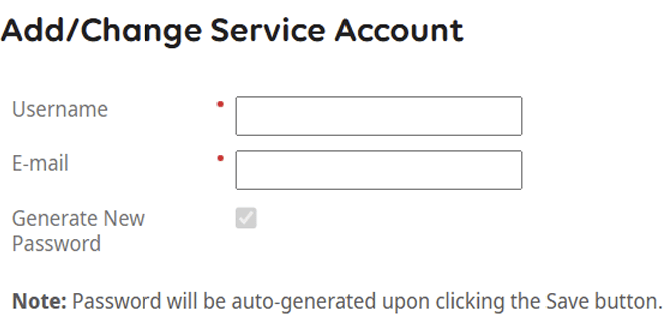
 2. Enter Service Account Details
* Enter a username for the account
* Provide an email address
2. Enter Service Account Details
* Enter a username for the account
* Provide an email address
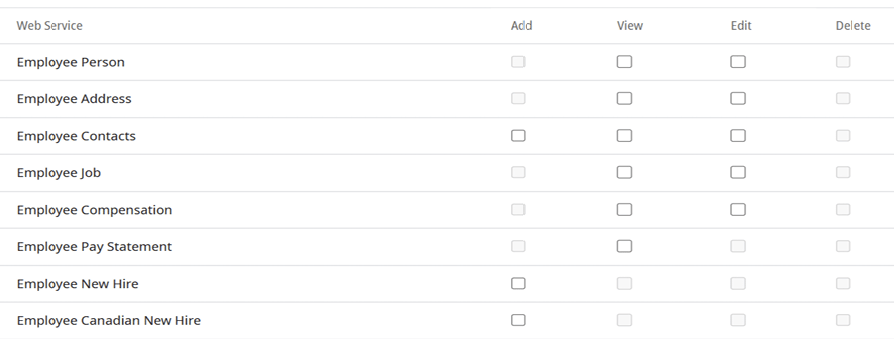
 3. Assign Permissions
* In the Web Services table, assign the appropriate permissions for the API resources you need to access
3. Assign Permissions
* In the Web Services table, assign the appropriate permissions for the API resources you need to access
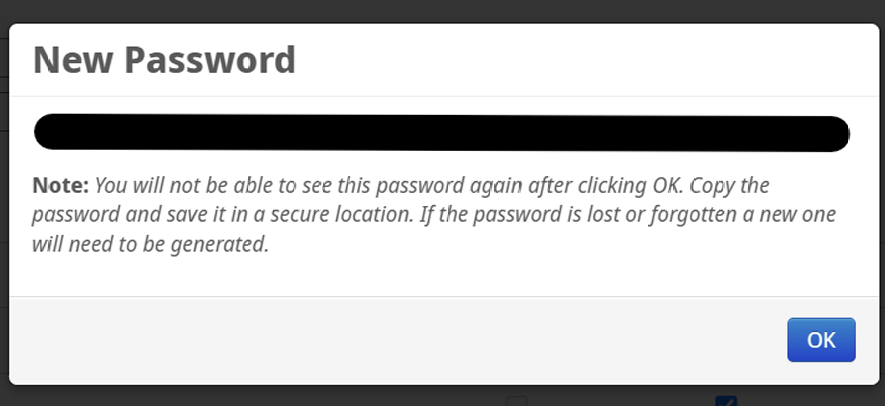
 4. Save and Generate Password
* Click the Save button at the top of the page
* A new password will be generated for the account
4. Save and Generate Password
* Click the Save button at the top of the page
* A new password will be generated for the account
 #### Step 3: Finding Your Hostname
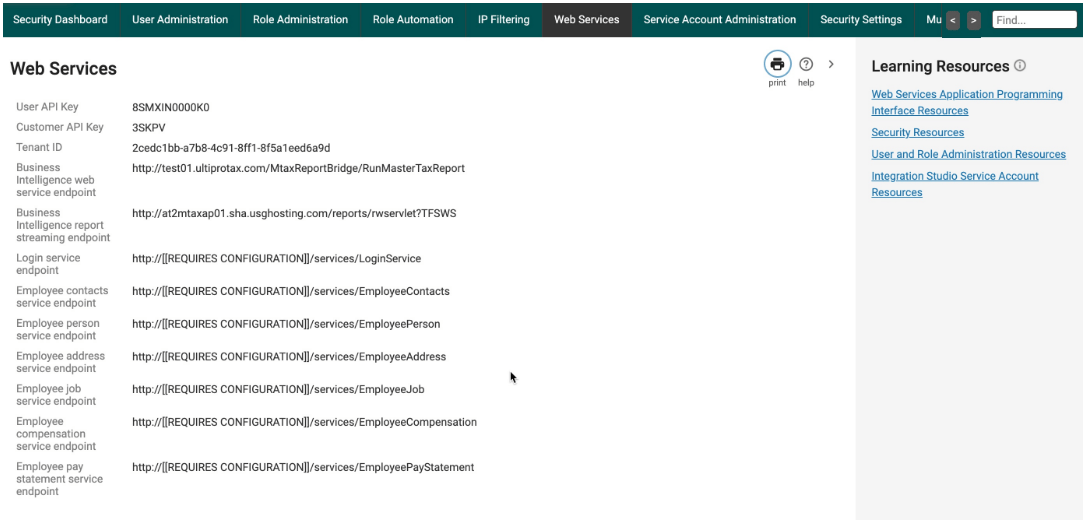
To locate your hostname:
1. Navigate to **System Configuration > Security > Web Services**
2. Your hostname will be the domain of your service URL (e.g. servicet.ultipro.com)
* The full service URL might look like "[https://servicet.ultipro.com/services/](https://servicet.ultipro.com/services/)"
* You only need the hostname portion (servicet.ultipro.com)
#### Step 3: Finding Your Hostname
To locate your hostname:
1. Navigate to **System Configuration > Security > Web Services**
2. Your hostname will be the domain of your service URL (e.g. servicet.ultipro.com)
* The full service URL might look like "[https://servicet.ultipro.com/services/](https://servicet.ultipro.com/services/)"
* You only need the hostname portion (servicet.ultipro.com)
 #### Step 4: Enter credentials in the Connect UI
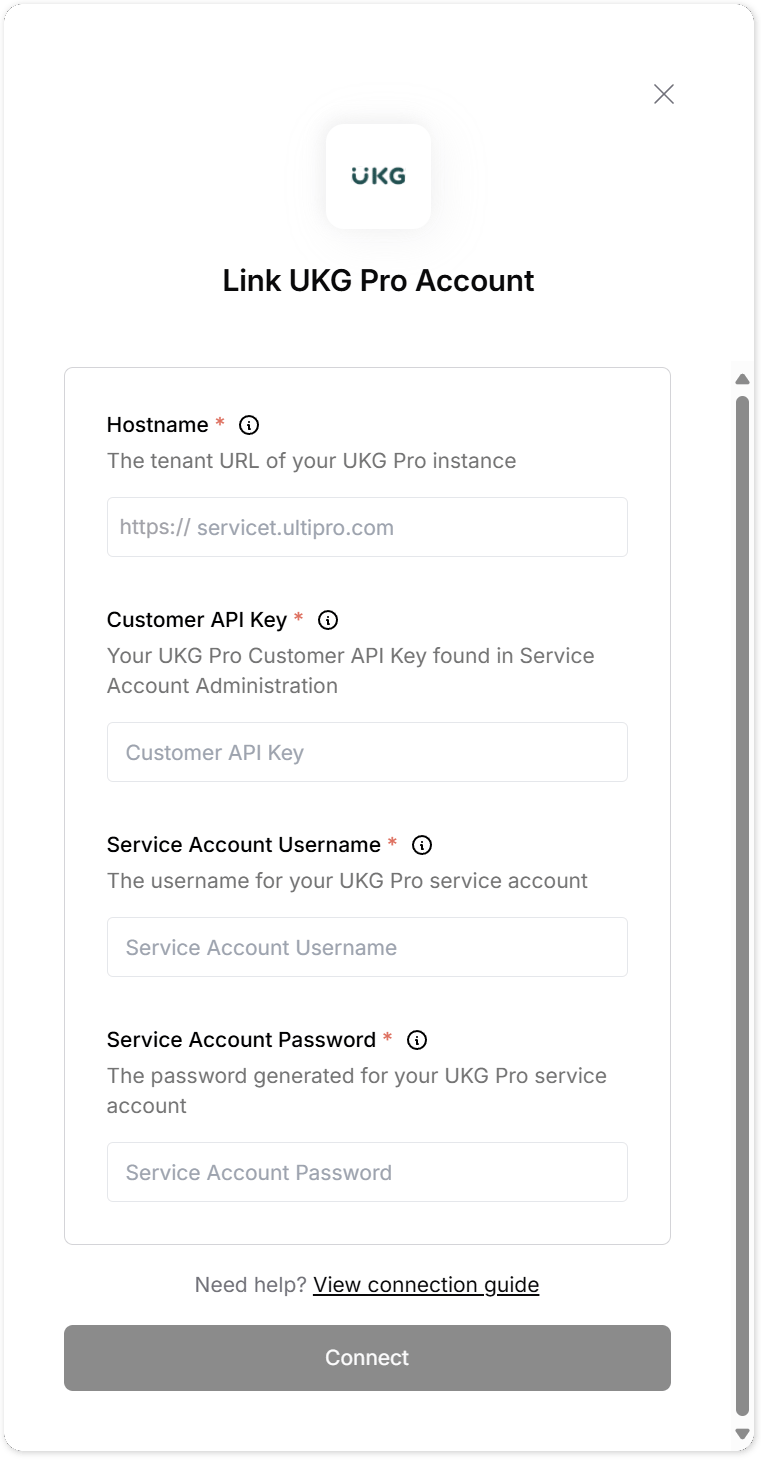
Once you have gathered all credentials:
1. Open the form where you need to authenticate with UKG Pro
2. Enter your:
* Service Account Username
* Service Account Password
* Customer API Key
* Hostname (e.g. servicet.ultipro.com)
3. Submit the form, and you should be successfully authenticated
#### Step 4: Enter credentials in the Connect UI
Once you have gathered all credentials:
1. Open the form where you need to authenticate with UKG Pro
2. Enter your:
* Service Account Username
* Service Account Password
* Customer API Key
* Hostname (e.g. servicet.ultipro.com)
3. Submit the form, and you should be successfully authenticated
 You are now connected to UKG Pro.